
Play Launchpad Online Free: Your First Beat in 10 Minutes
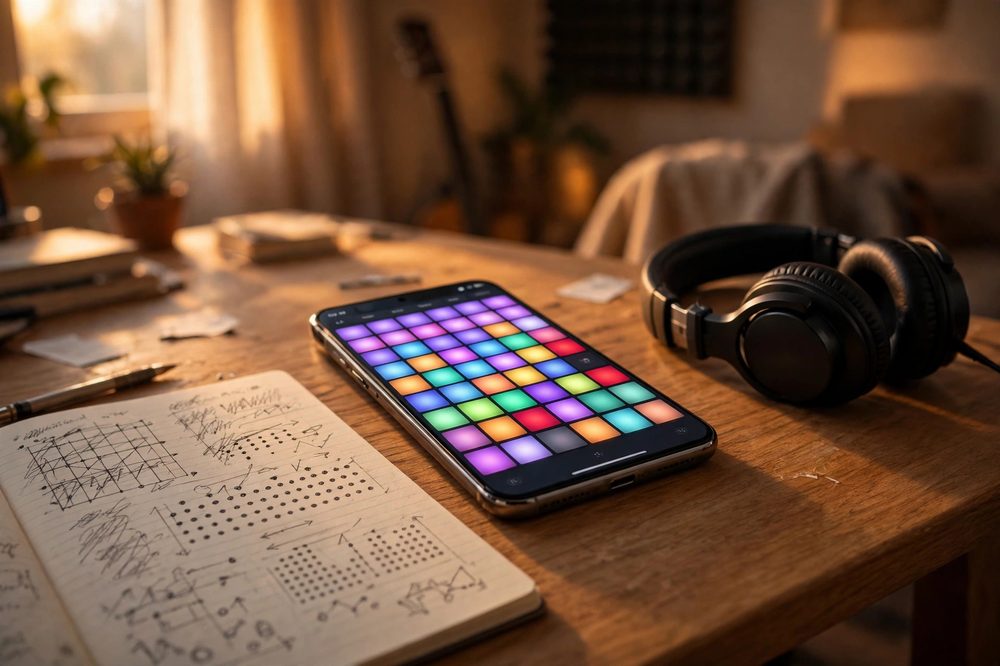
A hardware Launchpad costs hundreds of dollars, needs software, cables and a desk. The version you are about to open costs nothing and lives in a browser tab: Launchpad Pro Web, an 8x8 pad grid with synthesized sound, scales, drums, a looper and guided songs. No install, no account, no gear. Here is your first 10 minutes with it — by the end you will have recorded a loop of your own.
Minute 0–1: Open it and unlock sound
Open the play page on your phone, tablet or computer, then tap or click any pad once. That first tap unlocks your browser's audio — without it, browsers stay silent by design. If you hear nothing after that, check your volume, and on iPhone check the silent switch. Headphones make a big difference: the pads are velocity-sensitive, and you will hear the soft taps as well as the hard ones.
Minute 1–3: The grid is a scale, not a keyboard
Here is the idea that makes a Launchpad forgiving for beginners: the 64 pads do not play every note — they play only the notes of one scale. The default is C Major, which means every pad you press sounds in tune with every other one. You literally cannot hit a wrong note, only a less interesting one. Pads with a white outline are the root note (C), your home base. Moving up one row shifts the melody by two scale steps, so patterns you play low on the grid can be repeated higher up and they still fit.
Try this: tap four pads in a row from left to right, then the same shape one row up. That is already a melody. Switch the scale to Minor and play the same shape again — same fingers, completely different mood. Penta is the safest scale of all: five notes, famously hard to make sound bad, which is why it is the default choice for jamming.
Minute 3–5: Add drums and chords
Melody alone floats; rhythm grounds it. The bottom row of the grid is a drum kit: Kick, Snare, Hat, Clap, Tom, Rim, Crash and Zap. A beat that works on almost anything: Kick on beats 1 and 3, Snare on 2 and 4, Hat ticking steadily in between. Tap it with two fingers — multi-touch means the grid plays several pads at once, so your left hand can keep the beat while your right hand plays melody.
The buttons down the right column play three-note chords built on each row. Hold one and it sustains under your melody like a backing pad. One chord held + a simple four-note melody + that kick-snare pattern, and you already sound like a track, not an exercise.
Minute 5–8: Record your first loop
This is where it becomes an instrument instead of a toy. The looper works like this:
- Press Rec and play. Play your beat and melody for a few seconds, then press Rec again. The loop starts repeating immediately.
- Press + Dub to layer. While the loop plays, add a second part on top — a bass note, a hat pattern, a chord. Press again to finish the layer; it joins from the next pass.
- Turn on Quantize first if your timing wobbles. It snaps your notes to the nearest 1/16 note and rounds the loop to whole beats, so a slightly sloppy take still loops cleanly.
Set the tempo with the BPM buttons (40–200) and turn on Metro if you want a click while recording — the click is never recorded into the loop. When you like what you hear, Export saves the loop as an audio file you can keep or send to a friend.
Minute 8–10: Learn a song, then make it yours
Press Learn and the pad teaches you Twinkle Twinkle Little Star, then Ode to Joy, then Mary Had a Little Lamb. The next pad glows and pulses until you press it; a wrong pad still plays its sound but the song waits for you, and the button tracks your progress (Twinkle 5/14, for example). Learn mode quietly resets the scale to Major and the key to C, so it is also the fastest way back to a clean slate.
Once you finish a song, stay on that grid and change one thing: switch the scale to Blues, or the sound from Sine to Pluck, or slow the BPM to 60. The same melody becomes a different piece, and that is the real lesson — the grid rewards experimenting, not memorizing.
Five things worth knowing early
- Velocity is in your fingers. Touching the middle of a pad plays louder than touching the edge — dynamics are half of what makes a beat feel human.
- Glide is for runs. Slide a finger across pads to play them one after another — perfect for fast fills and rising runs.
- Arp plays itself. Hold a pad with Arp on and it repeats a pattern from the scale at the current BPM — instant texture under a loop.
- Your samples stay yours. Load an audio file onto any pad, or hold a pad to record from your microphone; samples are saved in your browser and are still there next time. (Microphone recording needs HTTPS — SumoPlay is served over HTTPS, so it works.)
- Share shares settings, not recordings. The Share button copies a link that applies your scale, key, octave, sound, tempo and toggles on a friend's device — great for "try this sound" moments.
On a computer? Use the keyboard
The four pad rows map to your keyboard, bottom row first: Z X C V B N M , for the bottom row, A S D F G H J K above it, Q W E R T Y U I above that, and 1 2 3 4 5 6 7 8 for the top row. Two hands on the keyboard, and you can play melody and drums at the same time without touching the mouse.
Start your first beat
That is the whole onboarding: one tap to unlock sound, one scale that cannot go wrong, one drum pattern, one loop, one song. Ten minutes from now you could still be reading about Launchpads — or you could have a loop of your own playing on repeat. Open Launchpad Pro Web and press Rec. 🎛️